The client list is the roster. Opening somebody takes you to their chart.
Finding somebody
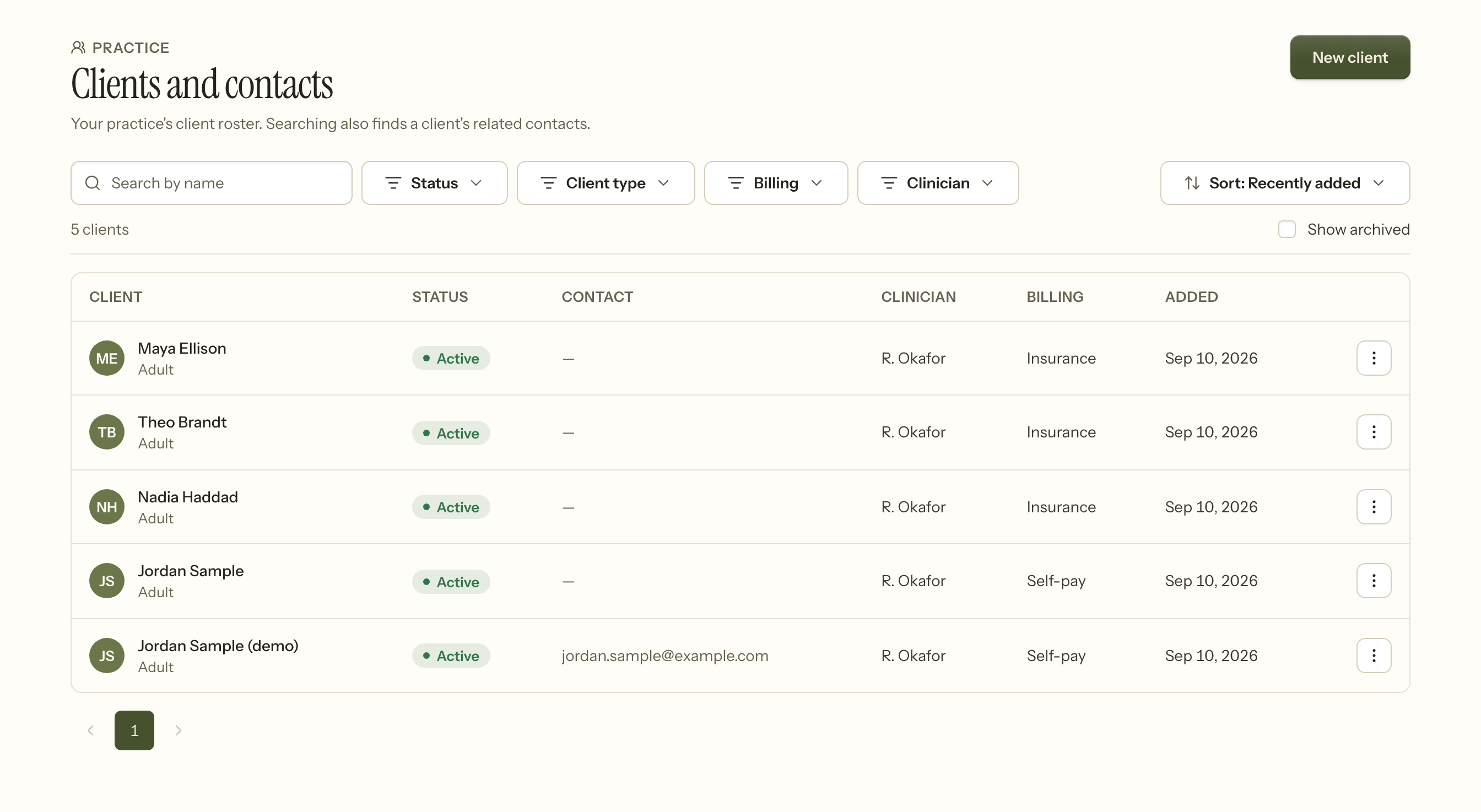
Search matches names, including the name they go by rather than only their legal one. The filters above the list narrow by status, client type, billing, and clinician, and they stack — a filtered list showing nothing usually means two filters that cannot both be true. Clear filters puts it back.
Archived clients are hidden by default. Turn them back on with Archived when you are looking for somebody you stopped seeing.
Who can see whom
Two things narrow it, and they stack.
Role. Front desk sees demographics and scheduling, not the clinical chart. Billing sees what it needs to bill and no clinical notes. Clinicians see charts. Owners see everything except other clinicians' psychotherapy notes. Read only sees what an Owner sees and can change none of it — for an auditor, an outside reviewer, or a supervisor brought in to read the record.
Which clients can they work with? — the question the Team screen asks when you give somebody a clinical role. A clinician is either scoped to their own caseload or to the whole practice, and you answer it per person. This is how a group practice says that seven of its eight clinicians do not need to read each other's charts.
Restricted records
Any client can be marked restricted. It exists for the cases where "everyone with practice access" is the wrong audience — a colleague, a family member, somebody locally well known.
A restricted record is visible only to the Owner and the client's own clinician. It is also excluded from every report that names clients, and it is never served over the API. Only the Owner can raise or lower the restriction.
Status
Prospective is somebody you have not started with. Active is a current client. Waitlist means they are waiting for an opening — see Scheduling.
Archiving a client keeps the record and takes it out of the working list. Nothing is deleted; a chart has to keep existing for the invoices and notes that reference it to still make sense.
The chart
Everything about one person, in one place. The parts you will use most:
- Client info and Care & intake — who they are, and how they came to you.
- Diagnoses — the problem list, with one marked primary. See Notes and documentation.
- Treatment plan — goals and objectives, and the signature that makes a version final.
- Outcome measures — questionnaires you have sent or administered, and the trend across them.
- Ledger and Balance — what has been charged, what has been paid, and what is left. See Taking a payment.
- Consents & paperwork, Authorizations to disclose, and Accounting of disclosures — what they have agreed to, who you may share with, and a record of every disclosure actually made.
- Files and Billing documents — what you hold and what you have issued.
- Contacts — see below.
Notes are written against a session rather than against the chart, so they live on the appointment. See Writing and signing a note.
Contacts
A client can have contacts — a parent, a partner, an emergency contact. A contact can be given portal access of their own, which is separate from the client's, and granted per person rather than assumed from the relationship.
Recently viewed
The history icon in the top bar lists the charts and appointments you opened last. It is yours alone: colleagues cannot see it, and neither can the Owner. If you lose access to a client — they are reassigned, or restricted — they drop off the list immediately.
When it goes wrong
A client you know exists does not appear. Either a filter is excluding them, they are archived, or they are not on your caseload and your access scope is your own caseload. In that order — the first two are far more common than the third.
A colleague cannot see a client you can. Their scope, or the client is restricted. Both are deliberate; an Owner can change either.
A name looks wrong on screen. The app shows the name somebody goes by wherever there is one, and their legal name where the document requires it — claims, statements, superbills. Both are on the record and neither overwrites the other.
You cannot delete a client. Nothing deletes a chart, and that is not an omission. Notes, invoices and claims reference it, and a record that vanishes from underneath them leaves documents that cannot be explained. Archive instead.
A restricted client disappeared from a report. That is the restriction working — restricted records are excluded from anything that names clients.
Related
- Adding a client — creating the record
- Writing and signing a note — the session record
- Client portal — what the client sees of their own chart
- Taking a payment — what lands on the ledger