Most of what happens in Insight starts with an appointment. Booking one creates the session on the calendar, the charge it will be billed under, and the progress note that will be written after it.
There are two ways in, and they differ only in how much is filled in for you:
- Click the gap on the calendar where the session should go. The date, time and clinician are set from what you clicked.
- Choose New › New appointment from the header, on any screen. Nothing is pre-filled.
The form is the same either way.
Before you start
The client needs to exist — see Adding a client. You can also create one from inside this form if they rang up and you are booking as you speak.
You do not need bookable hours set up. Those govern what clients can book themselves through the portal; you can book anybody at any time.
Steps
1. Open the form
Click an empty slot on the calendar, or choose New › New appointment from the header.
2. Fill in the session
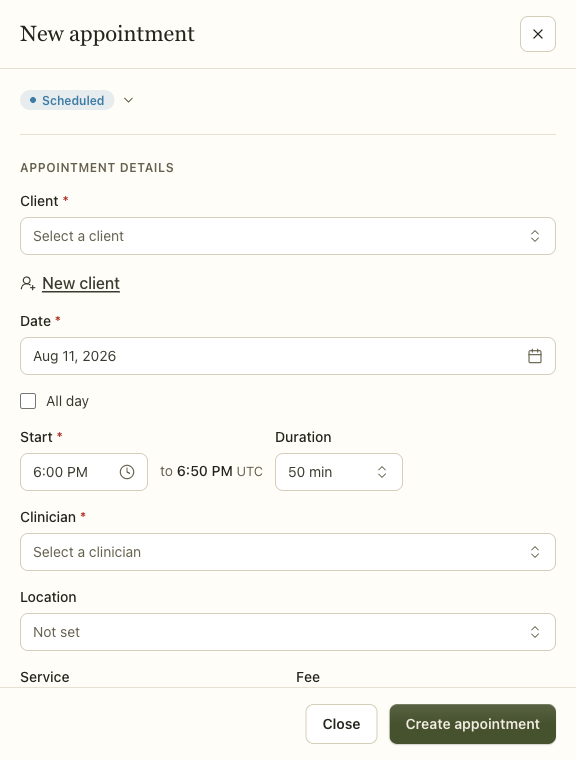
Client is the only field with no sensible default. If they are not on the books yet, New client underneath adds them with just a name — the rest of their record can wait.
Date, Start and Duration define the session. The end time is shown next to the start so you can see what you are booking without doing the arithmetic. The timezone is stated because a practice with clinicians in two states has two answers to "10:00".
Clinician is who is seeing them. If you are a clinician yourself, this is you and cannot be changed.
Location is the room or site. Leave it as Not set if the session is remote or your practice has one location.
Service decides what the session is billed under, and sets the fee. Leaving it unset books the session without a charge, which is right for a consultation you are not billing and wrong for almost everything else.
Fee defaults to the service's rate, or to a rate agreed with this client if one is on file. Overriding it here changes this session only.
3. Choose Create appointment
The session appears on the calendar and the drawer closes.
What happens next
The appointment is on the calendar and the client has not been told. Insight does not email anybody automatically when you book — reminders go out on their own schedule, and telling somebody their appointment exists is a decision, not a side effect.
Depending on how your practice is set up:
- A charge is created if you chose a service, and appears in Billing.
- A reminder is scheduled if the client has reminders switched on.
- A progress note waits for you after the session, and shows up in the Notes list until it is written.
If the slot clashes with something, a warning appears in the form. It does not stop you — double-booking is sometimes deliberate, and the product's job is to tell you, not to refuse.
Recurring sessions
A standing weekly session is booked once. Set the recurrence in the form and Insight creates the series.
Two things worth knowing:
- Monthly follows the day of the month. A session on the 31st falls on the 28th in February, then returns to the 31st in March.
- Changing one session changes only that session. It also detaches it from the series, so it keeps the new time even if the series is rebuilt around it. There is no way yet to move a standing slot from one day to another from a given date onwards — to change a series, cancel the remaining sessions and book the new pattern. Past sessions are never rewritten.
When it goes wrong
The client field is empty and the form will not save. Pick one from the list, or use New client if they are not on the books yet.
A scheduling conflict warning. The clinician already has another appointment at that time. Read it and decide — it will not block you.
Time off is not checked here, and neither are calendar events: you can book straight over somebody's annual leave without a word of warning. If a colleague's leave is in the diary, look before you book rather than waiting to be told.
The clinician you want is not in the list. They are not set up as a clinician — the list is everybody in the practice holding the Clinician or Owner role, so the fix is their role under Team.
Deactivating somebody does not take them out of this list, which is worth knowing in the other direction: a clinician whose access has been turned off is still bookable here, and will not be able to open the session or sign its note.
No fee appears when you pick a service. The service has no rate set, or this client has an agreed rate of zero. Check the service under Settings › Services.
Related
- Scheduling — availability, the waitlist, and how the calendar is organised
- Adding a client — getting somebody on the books first
- Billing and payroll — what happens to the charge afterwards