Adding somebody to your roster takes about a minute. Everything else — their chart, their appointments, their invoices — hangs off this record, so it is the first thing to do with a new client.
You only need two things to start: a first name and a last name. Every other field can be filled in later, or by the client themselves through the portal.
Before you start
Nothing. You can add a client on their first phone call, before you know anything else about them.
Steps
1. Open Clients and choose New client
Clients is in the sidebar. New client sits at the top right of the list.
2. Fill in what you know
The form opens beside the list, so you do not lose your place.
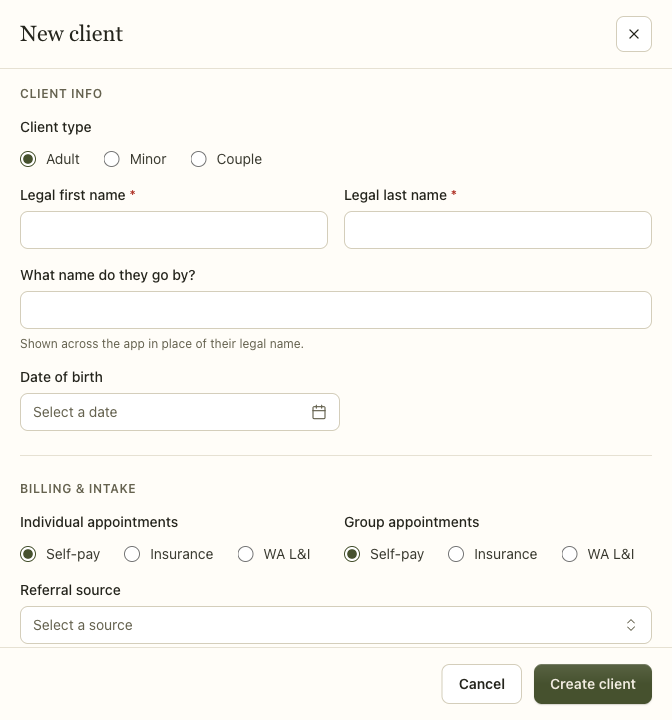
Client type. Adult is the only type a new client can be, and the form offers nothing else — the other two appear only on records that already carry them, so an old one stays editable.
Minors are deliberately not supported, and this is the one place on this page to read carefully. Picking that type would change nothing: the record behaves as an individual adult's. Nothing routes guardian consent, and nothing handles adolescent-confidential information — which is a state-by-state question this product does not yet answer. SECURITY.md says to escalate before serving under-18 clients, and that is still the position. Couple is the same: recorded by the schema, acted on by nothing. The form says so where you would pick one.
Legal first name and Legal last name are the only required fields. Use the name on their insurance card and their ID, because this is the name that goes on a claim.
What name do they go by? is shown everywhere in the app instead of the legal name. If someone's legal name is Katherine and everyone calls her Kate, put Kate here. It appears on your calendar and in your notes; the legal name still goes on anything that leaves the practice.
Date of birth can wait, but insurance cannot be billed without it.
Individual appointments and Group appointments set how sessions are charged by default. Self-pay means the client is invoiced. Insurance means a claim is raised. You can change this per appointment, so the setting here is the common case, not a commitment.
3. Choose Create client
The record is created and you are taken to their chart.
What happens next
You are on the client's chart. Nothing has been sent to them and nobody has been notified — a new client record is private to your practice until you do something with it.
From here, the three things most people do next:
- Book their first appointment — see Scheduling.
- Invite them to the portal, so they can fill in their own paperwork — see Client portal.
- Add contact — a parent, partner or referring GP. A contact is a separate record with its own permissions, so adding one does not give that person access to the chart.
When it goes wrong
"The first name field is required." Both name fields are needed. If you genuinely do not have a surname yet — an inquiry that came in with one name — put something you will recognise and correct it later.
You cannot find a client you know you added. The list is filtered by default to active clients. Check the status filter; a client who has been archived or marked prospective will not be in the default view. See Clients for what each status means.
Somebody on your team cannot see the client. That is usually deliberate. A clinician scoped to their own caseload sees only their own clients, and a restricted record is visible only to the Owner and the client's own clinician. Both are explained in Clients.
Related
- Clients — the chart, statuses, and who can see whom
- Importing your data — bringing an existing caseload across in one go
- Client portal — letting clients fill in their own details